
Guides
Set up each fellow, step by step.
Short clips with the steps on screen. In your Hub, each one can also walk you through it live, on your own screen.
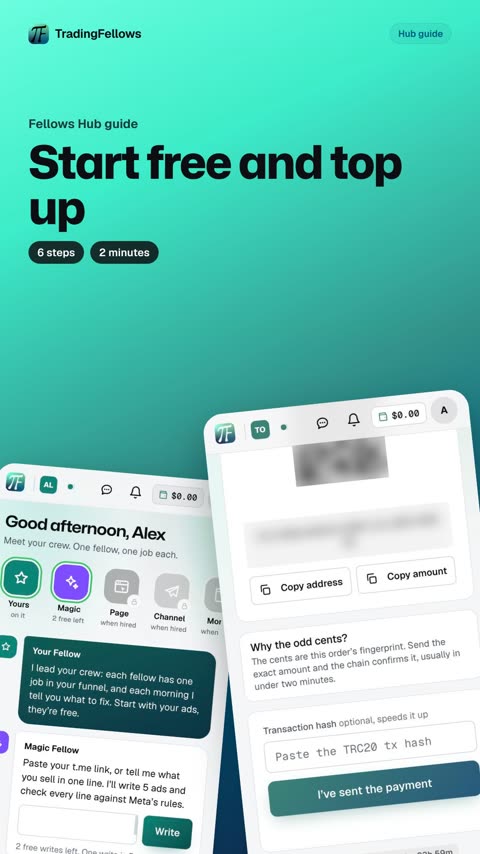
Start free and top up
6 steps · 2 minutes. In your Hub, this guide can walk you through it live, pointing at each button on your own screen.
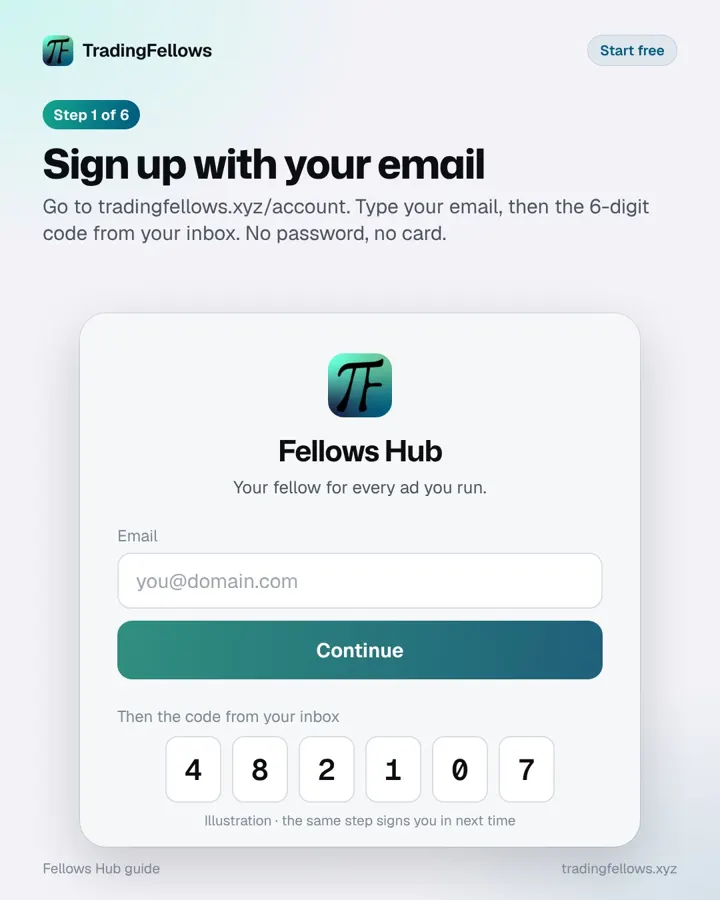 Sign up with your email
Go to tradingfellows.xyz/account. Type your email, then the 6-digit code from your inbox. No password, no card.
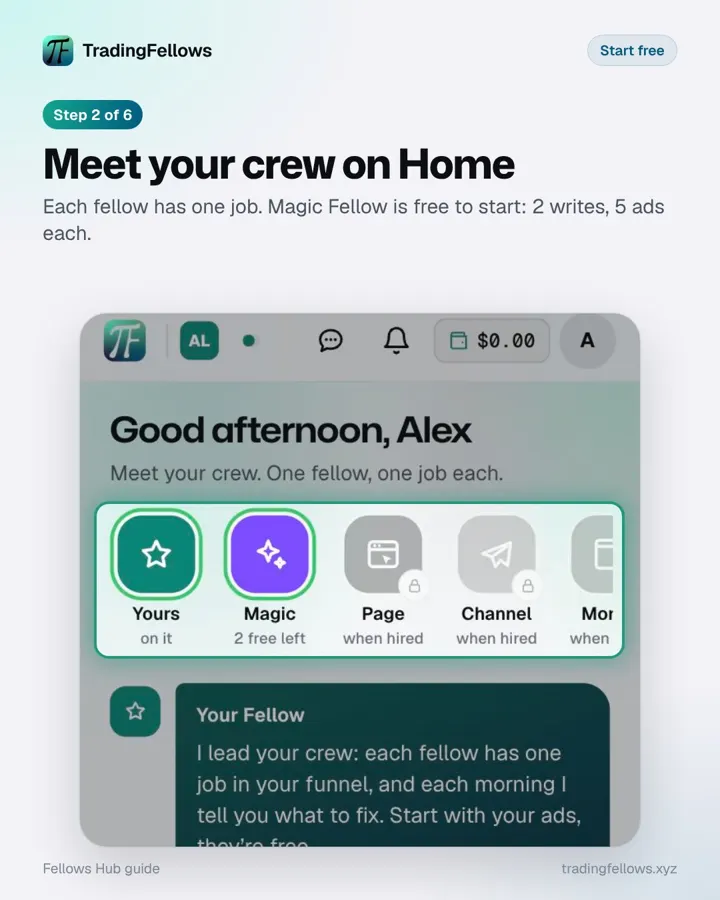 Meet your crew on Home
Each fellow has one job. Magic Fellow is free to start, no card needed.
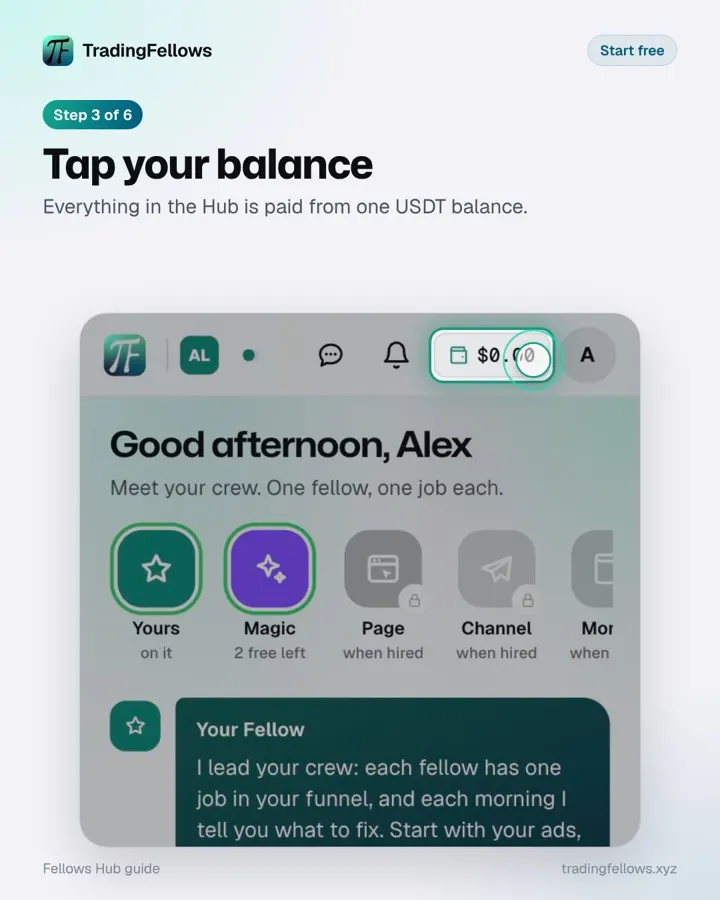 Tap your balance
Everything in the Hub is paid from one USDT balance.
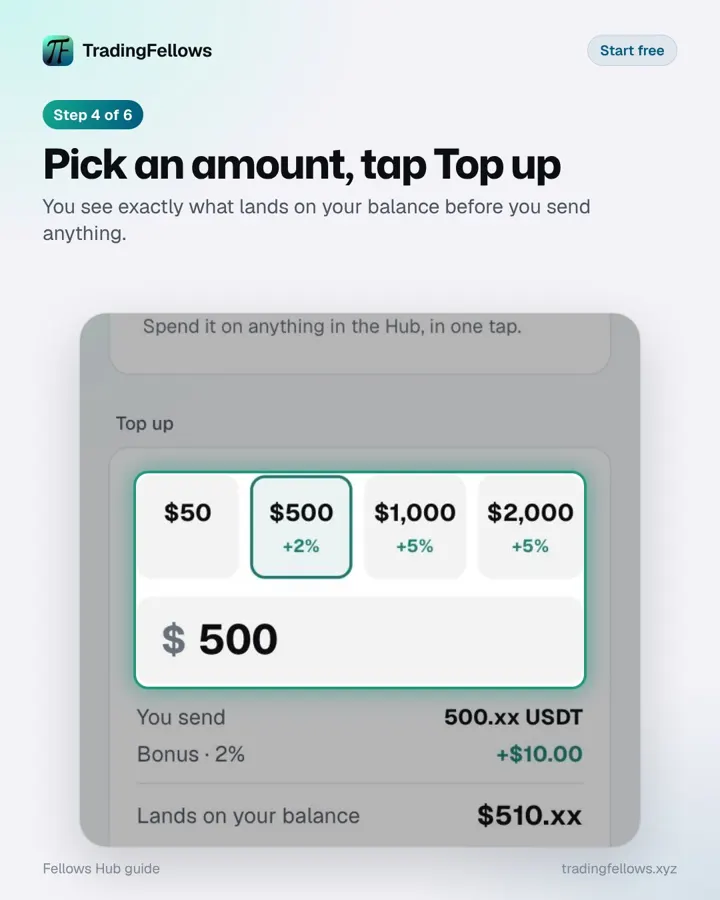 Pick an amount, tap Top up
You see exactly what lands on your balance before you send anything.
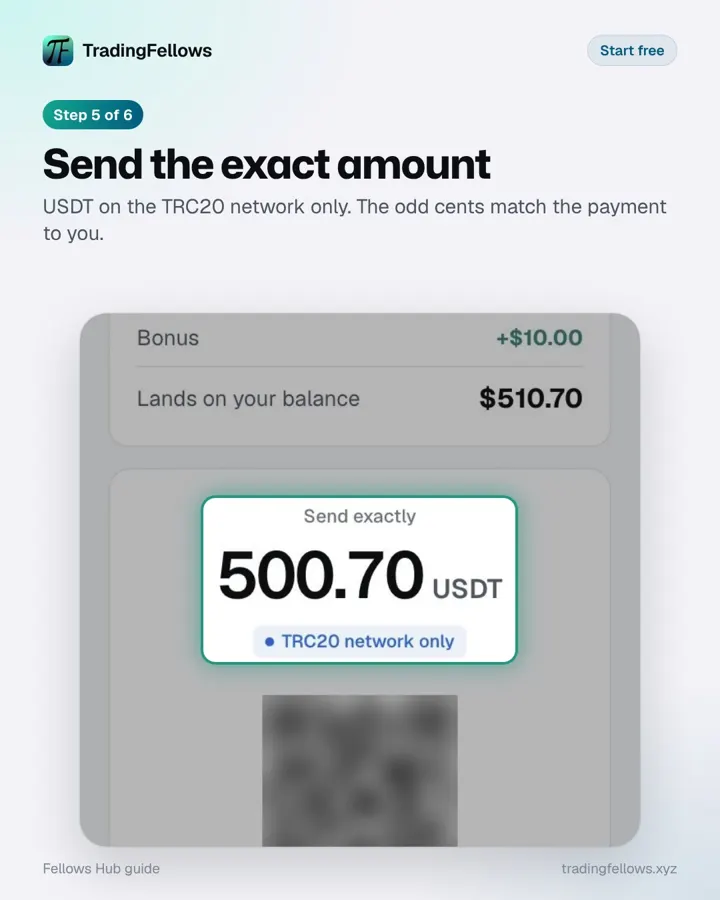 Send the exact amount
USDT on the TRC20 network only. The odd cents match the payment to you.
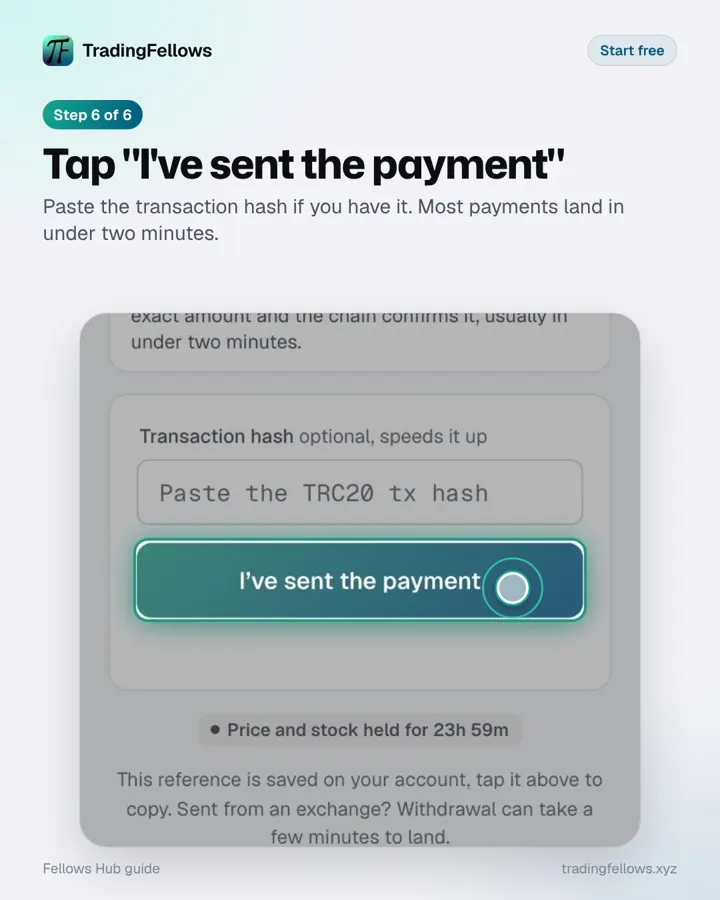 Tap "I've sent the payment"
Paste the transaction hash if you have it. Most payments land in under two minutes.
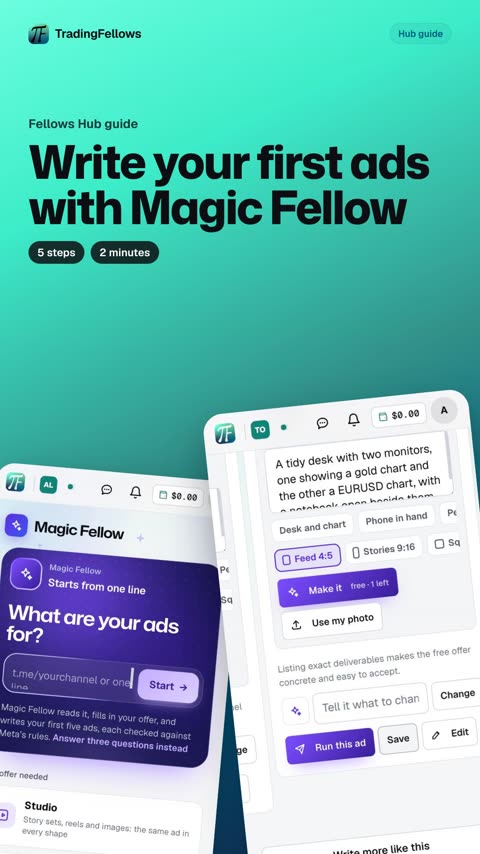
Write your first ads with Magic Fellow
5 steps · 2 minutes. In your Hub, this guide can walk you through it live, pointing at each button on your own screen.
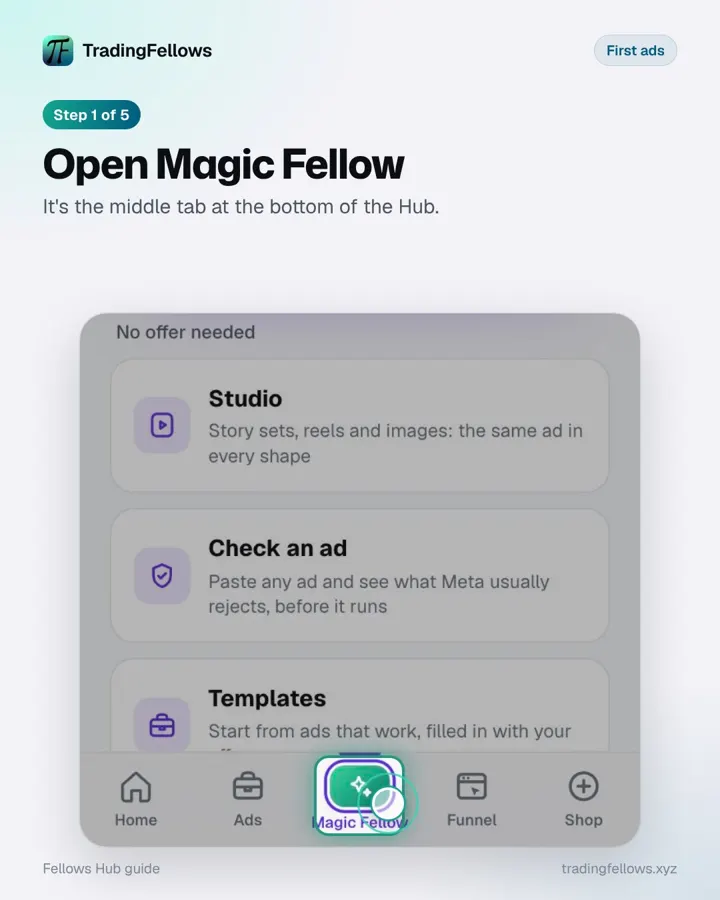 Open Magic Fellow
It's the middle tab at the bottom of the Hub.
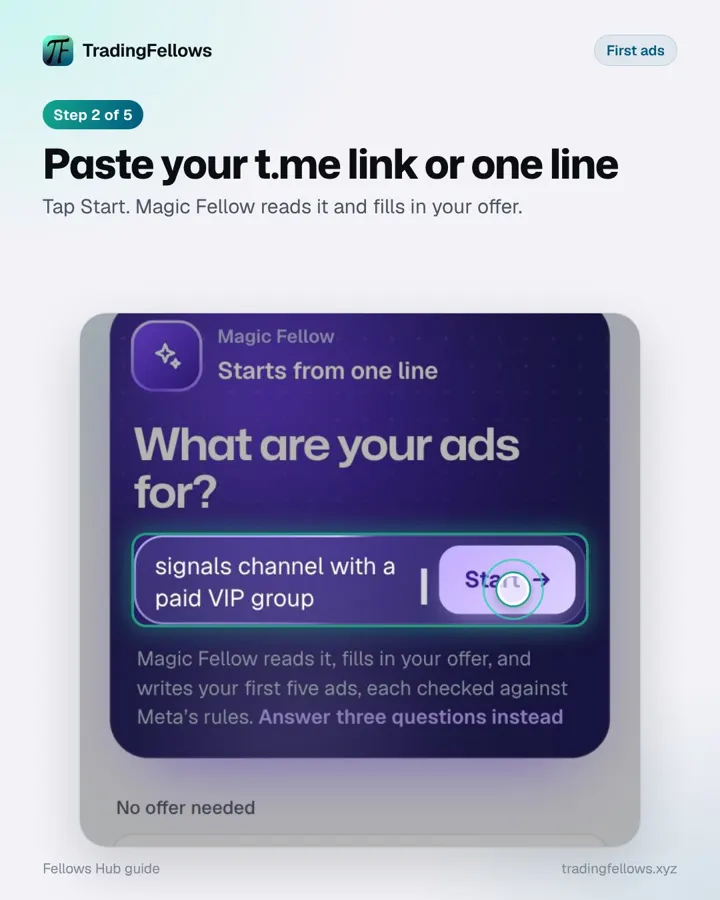 Paste your t.me link or one line
Tap Start. Magic Fellow reads it and fills in your offer.
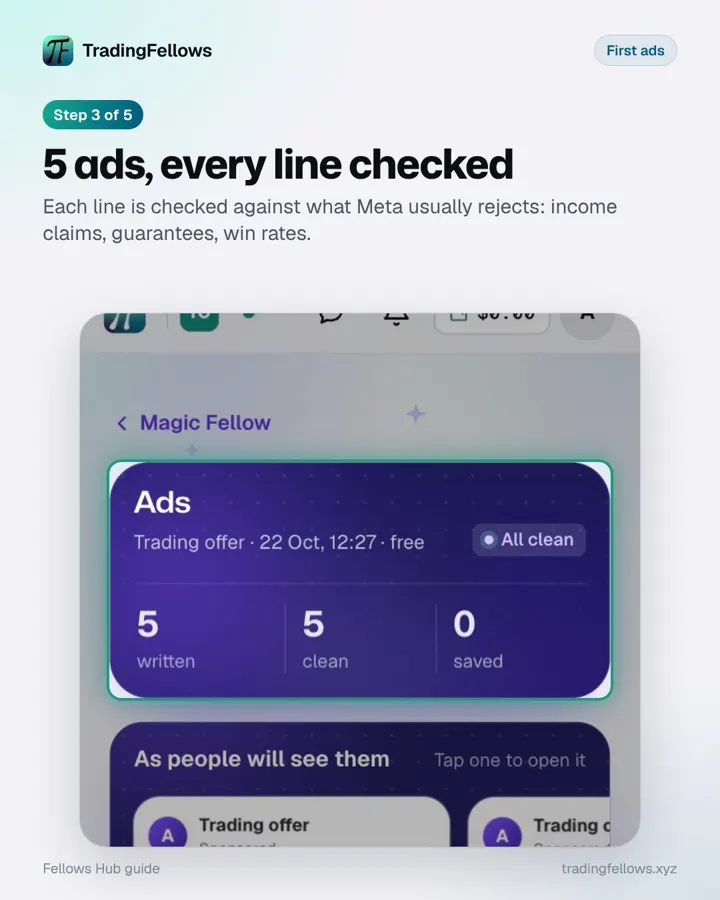 5 ads, every line checked
Each line is checked against what Meta usually rejects: income claims, guarantees, win rates.
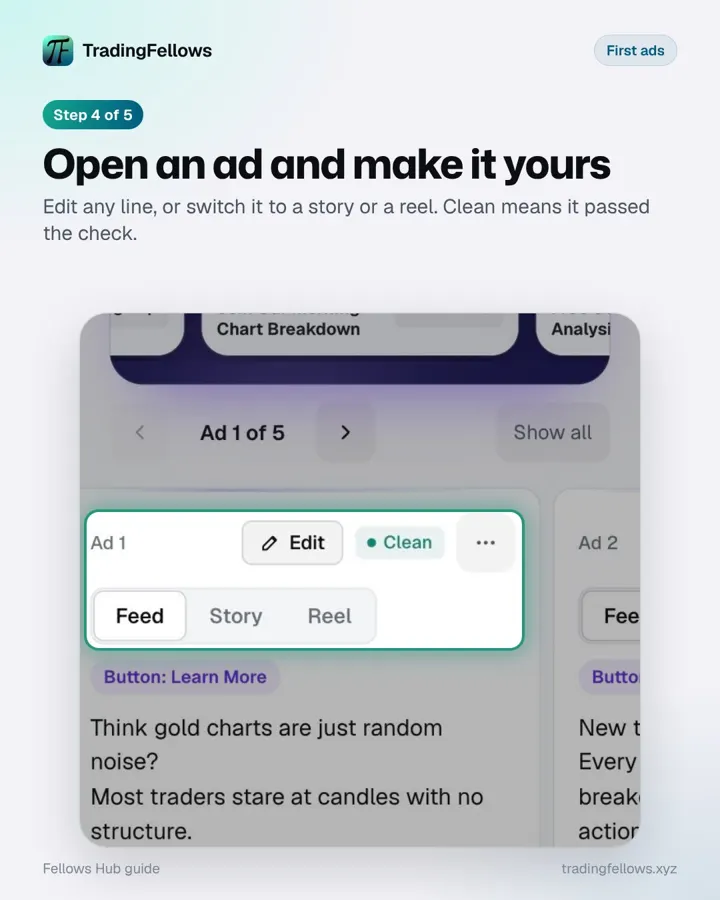 Open an ad and make it yours
Edit any line, or switch it to a story or a reel. Clean means it passed the check.
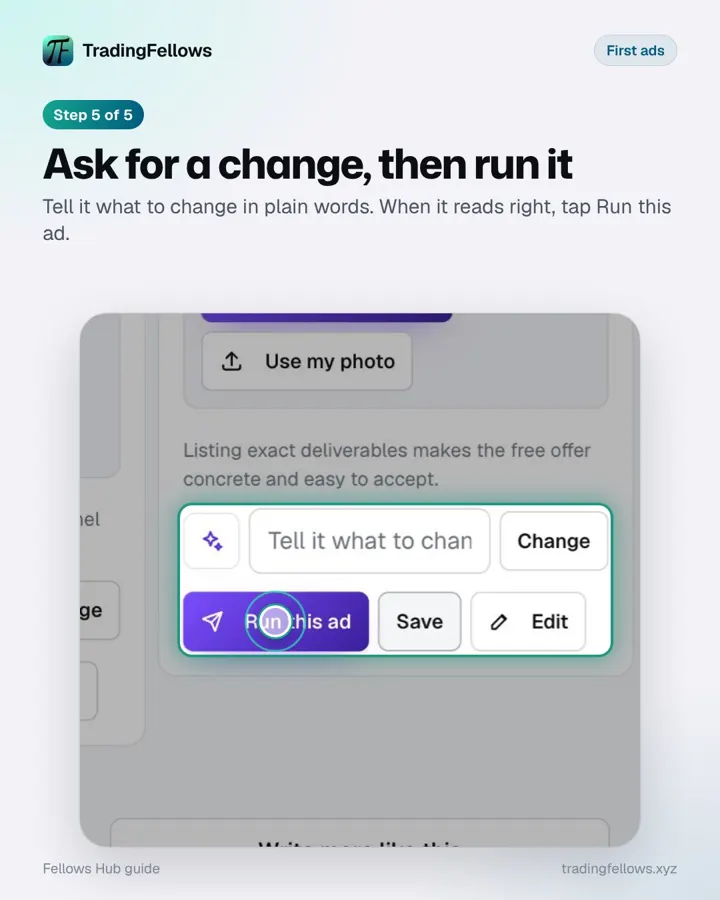 Ask for a change, then run it
Tell it what to change in plain words. When it reads right, tap Run this ad.
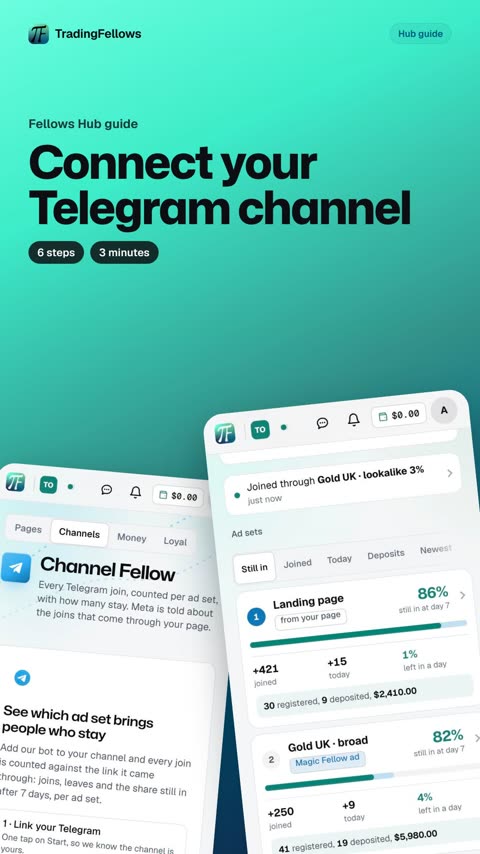
Connect your Telegram channel
6 steps · 3 minutes. In your Hub, this guide can walk you through it live, pointing at each button on your own screen.
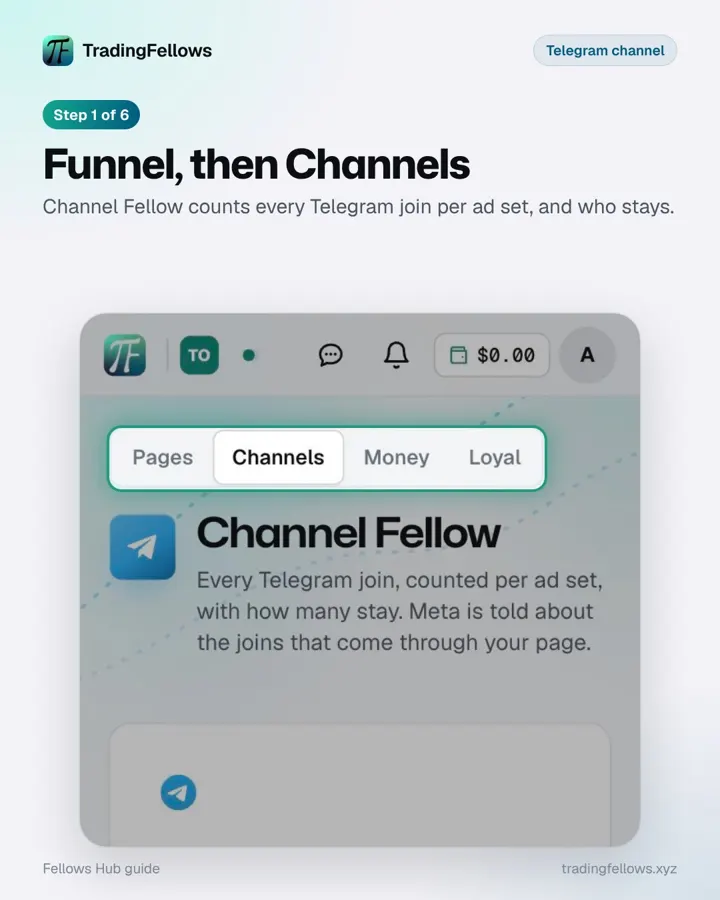 Funnel, then Channels
Channel Fellow counts every Telegram join per ad set, and who stays.
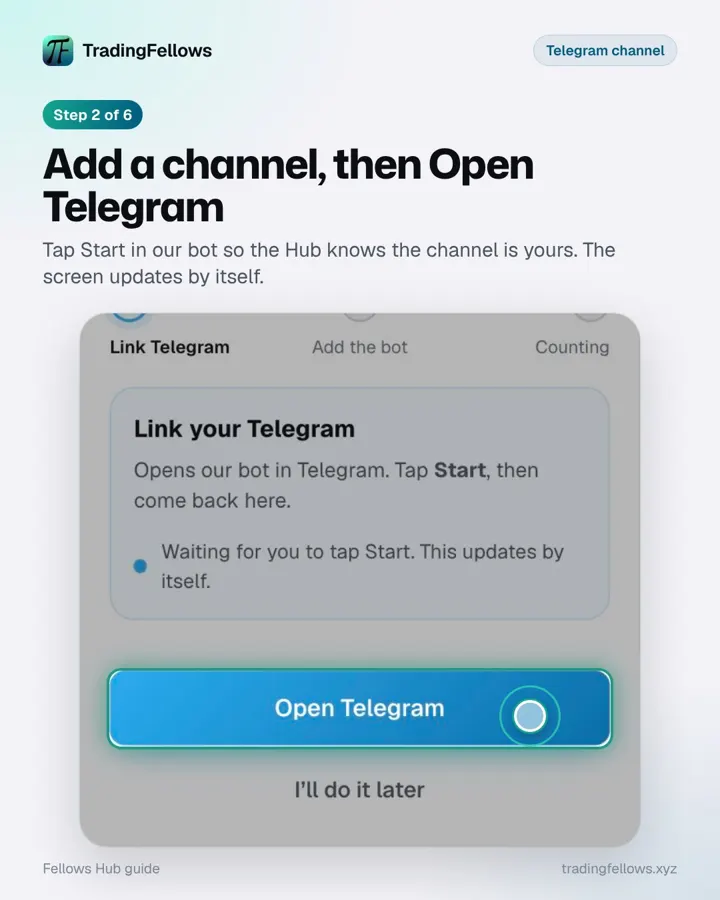 Add a channel, then Open Telegram
Tap Start in our bot so the Hub knows the channel is yours. The screen updates by itself.
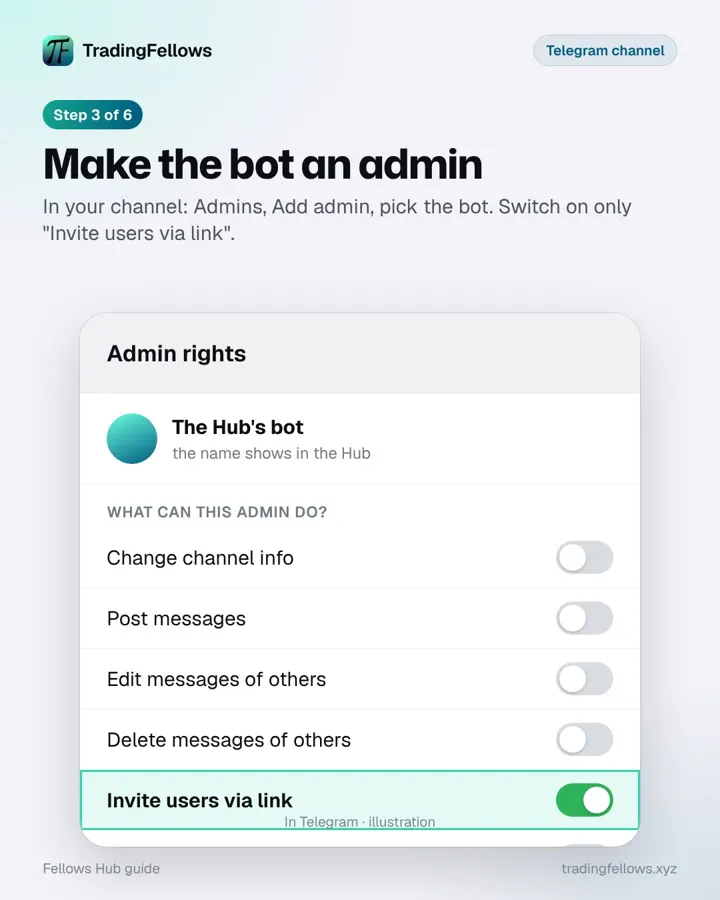 Make the bot an admin
In your channel: Admins, Add admin, pick the bot. Switch on only "Invite users via link".
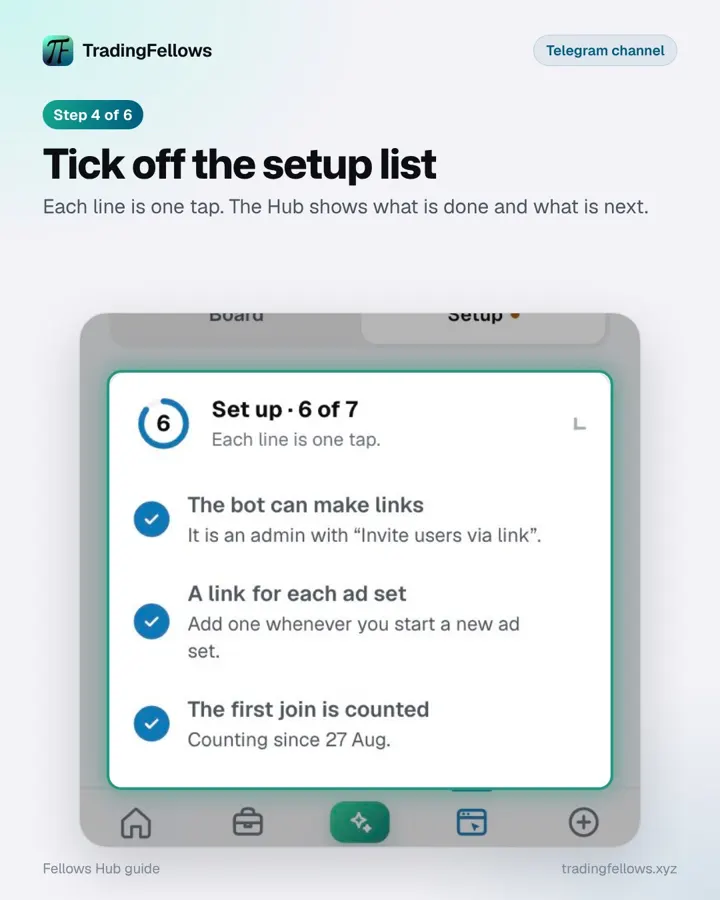 Tick off the setup list
Each line is one tap. The Hub shows what is done and what is next.
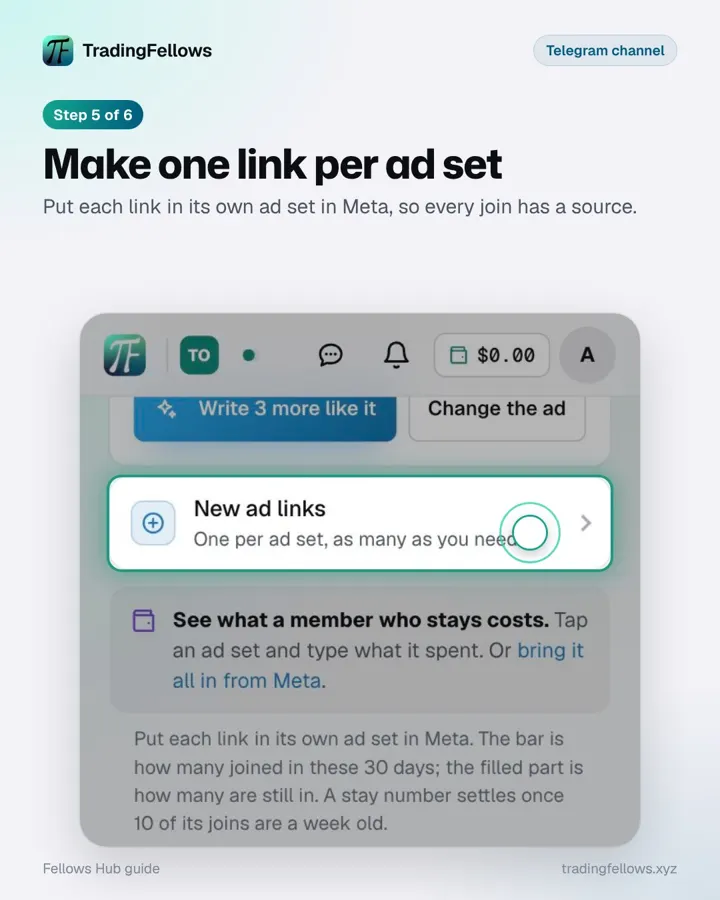 Make one link per ad set
Put each link in its own ad set in Meta, so every join has a source.
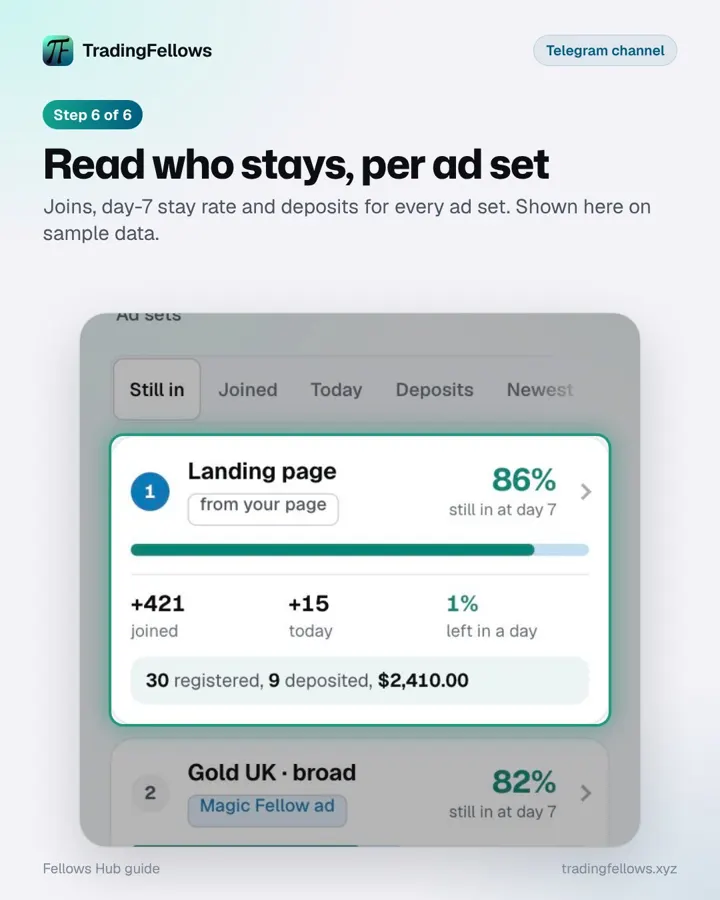 Read who stays, per ad set
Joins, day-7 stay rate and deposits for every ad set. Shown here on sample data.
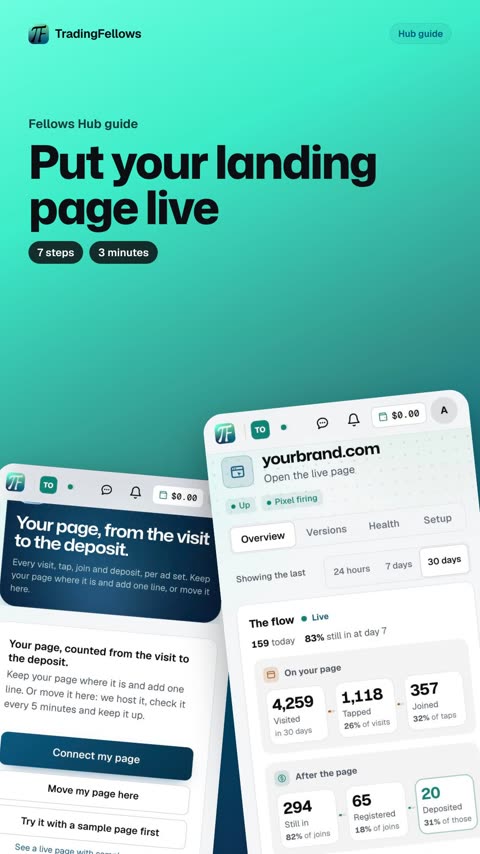
Put your landing page live
7 steps · 3 minutes. In your Hub, this guide can walk you through it live, pointing at each button on your own screen.
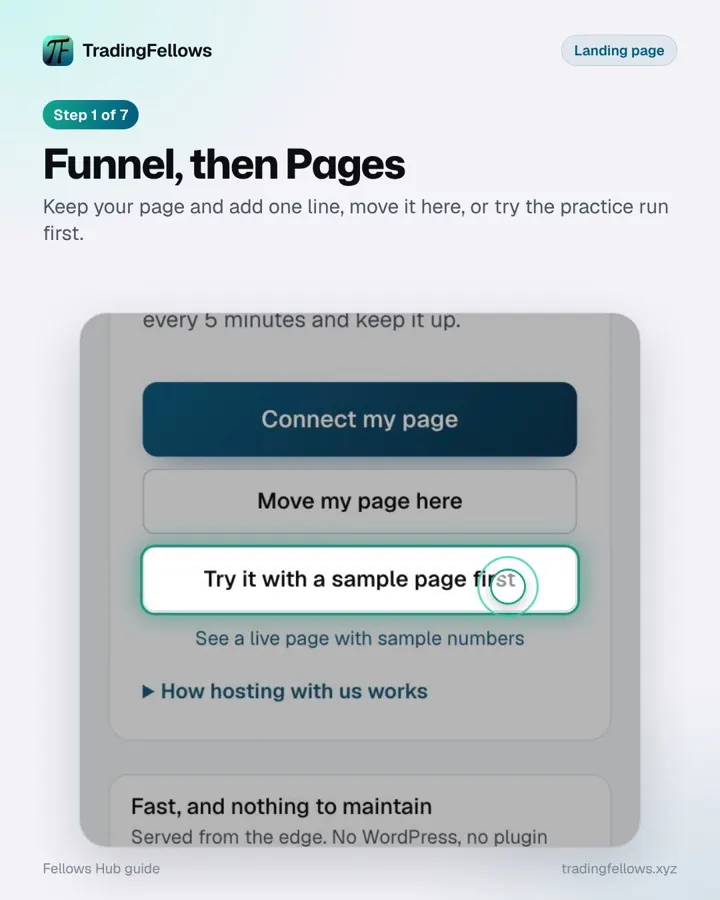 Funnel, then Pages
Keep your page and add one line, move it here, or try the practice run first.
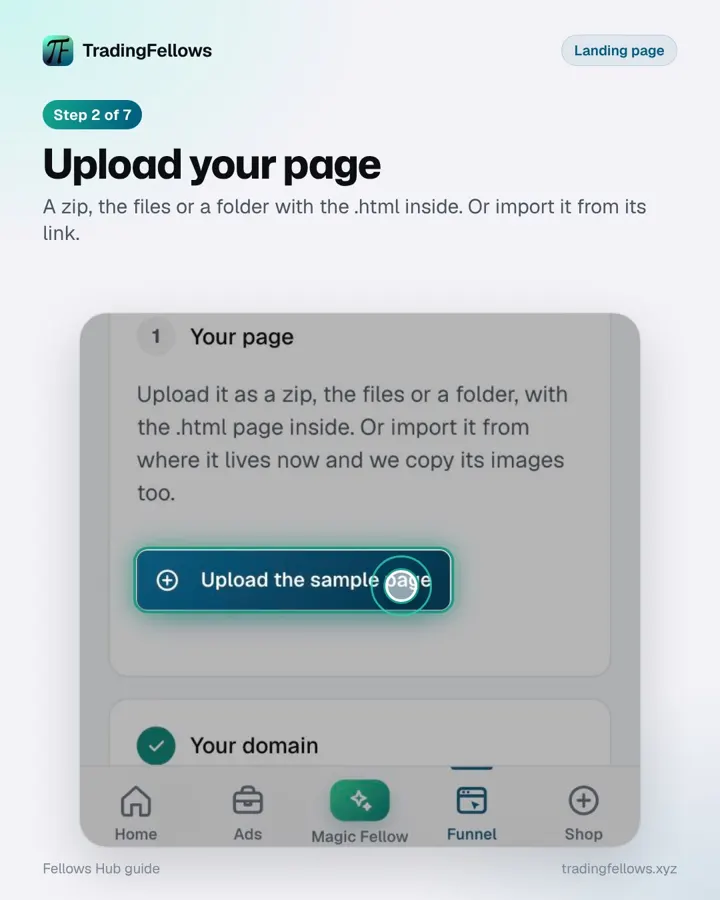 Upload your page
A zip, the files or a folder with the .html inside. Or import it from its link.
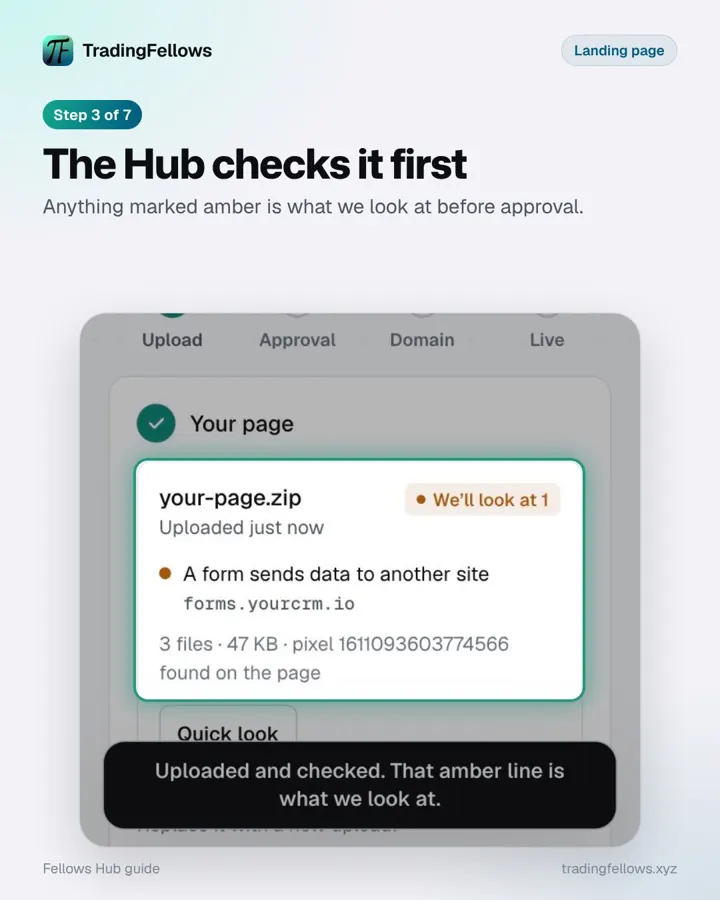 The Hub checks it first
Anything marked amber is what we look at before approval.
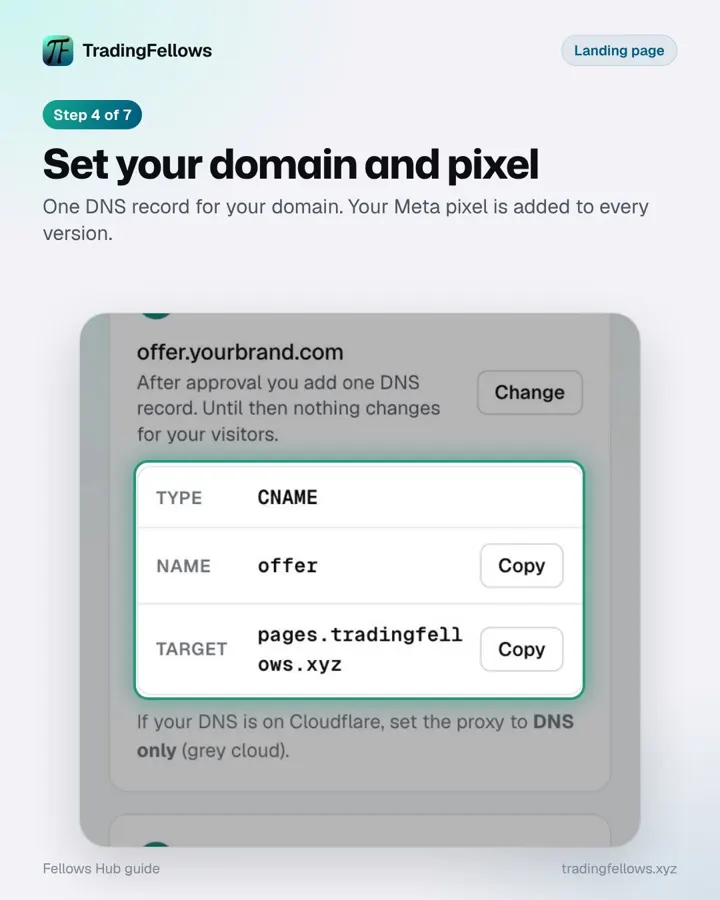 Set your domain and pixel
One DNS record for your domain. Your Meta pixel is added to every version.
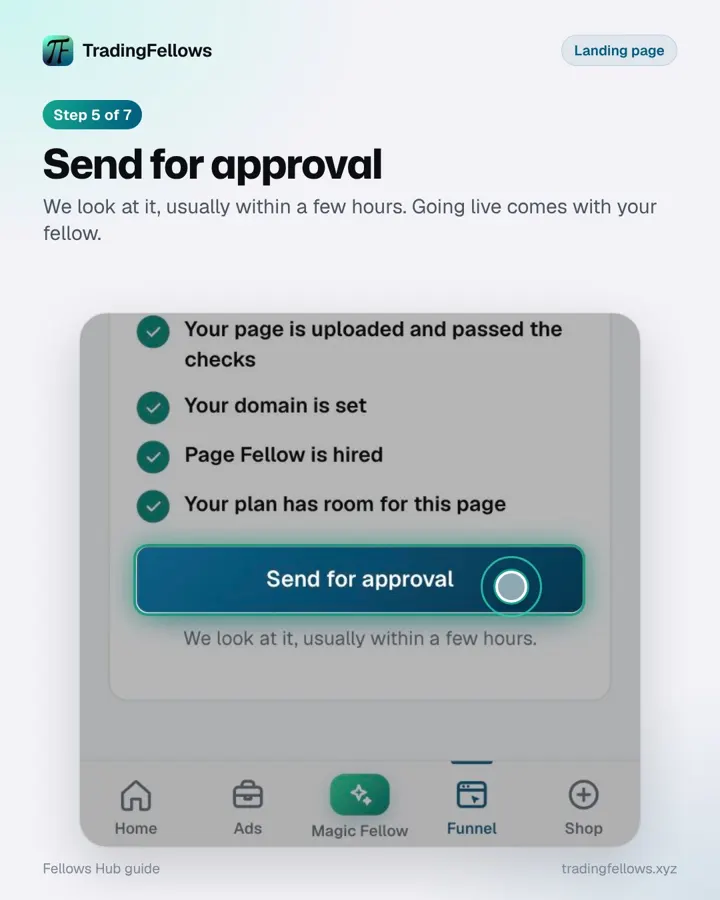 Send for approval
We look at it, usually within a few hours. Going live comes with your fellow.
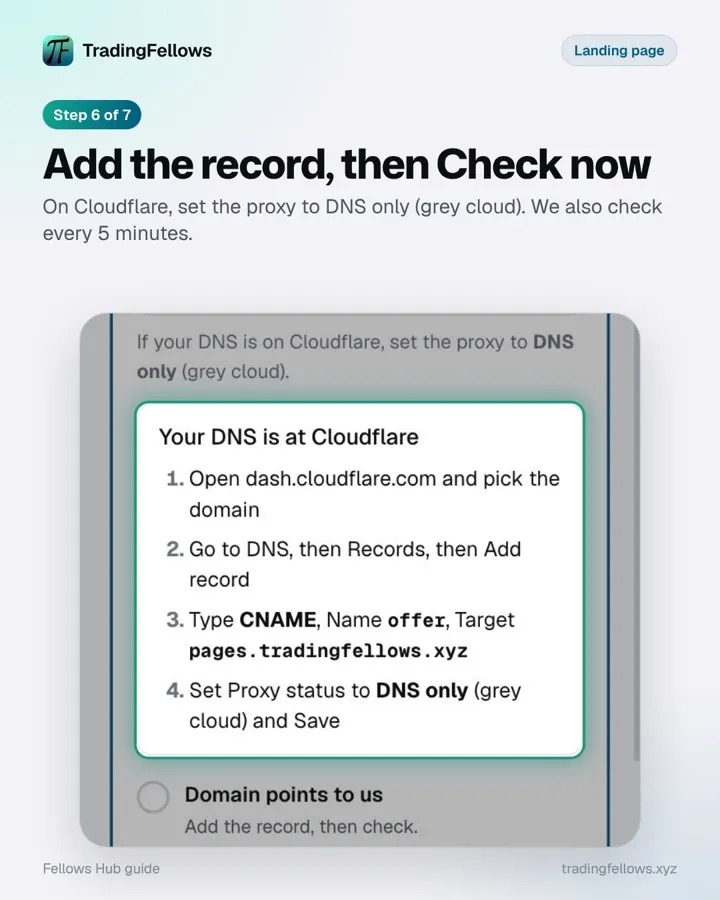 Add the record, then Check now
On Cloudflare, set the proxy to DNS only (grey cloud). We also check every 5 minutes.
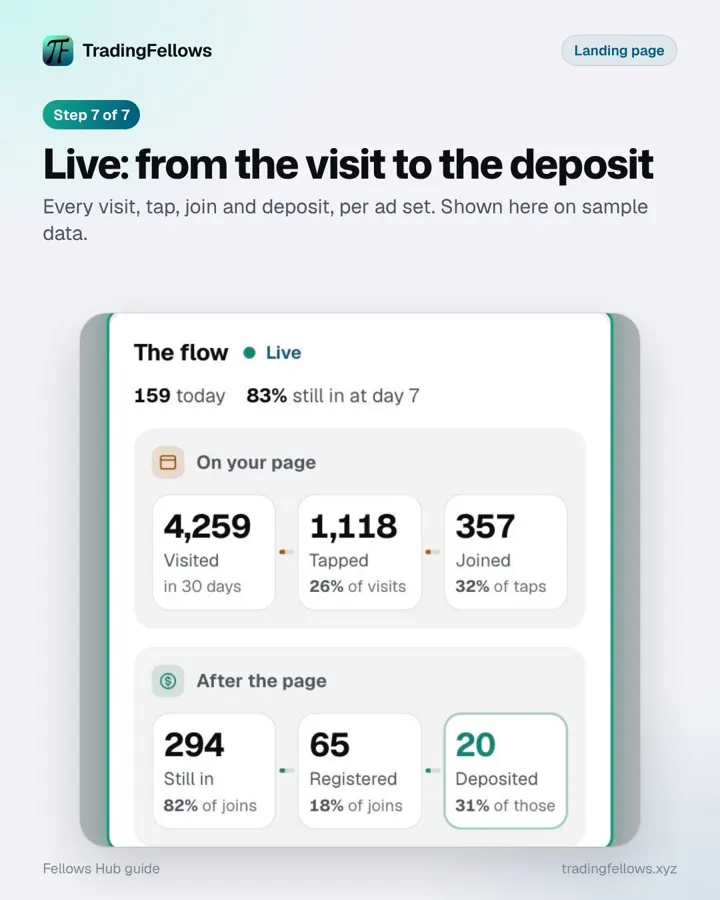 Live: from the visit to the deposit
Every visit, tap, join and deposit, per ad set. Shown here on sample data.
Stuck on a step?
Message us from Support in your Hub. A real person answers, usually the same day.